


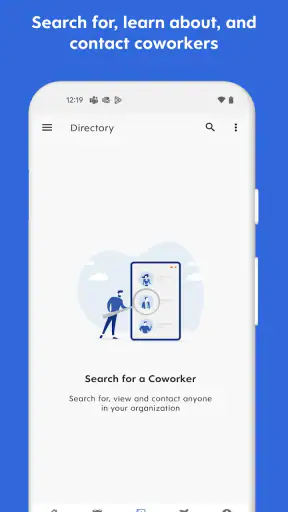
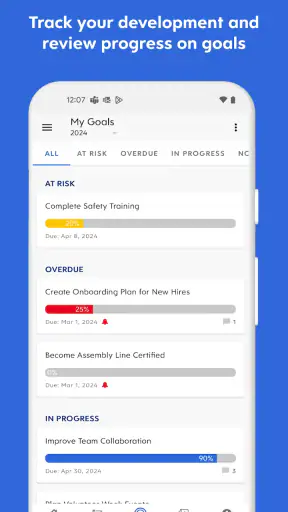
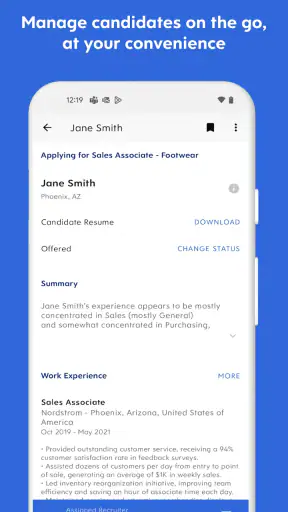
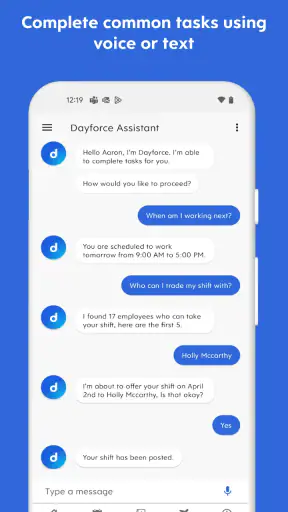
Dayforce is the kind of business app I appreciate more after using it as part of a normal work routine rather than opening it once to browse around. Its purpose is straightforward: it brings parts of my work life onto a phone, so I can handle employee tasks when I am away from a desk. That makes it especially relevant for people whose schedules, time records, requests, and workplace information are managed through Dayforce by their employer.
The important distinction is that this is not a general productivity planner. It is a workplace companion connected to an organization’s Dayforce setup. In my experience, that makes it useful when the company has configured the right employee tools, but less useful if you expect it to replace a calendar, task manager, payroll adviser, or full desktop administration system. The app is free to download, aimed at Everyone, and developed by Dayforce. Its broad reach is reflected in more than five million installs and an average rating of 4.6 from roughly 172 thousand ratings.
How Dayforce fits into an ordinary workday
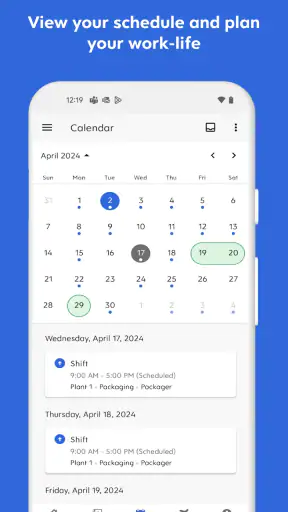
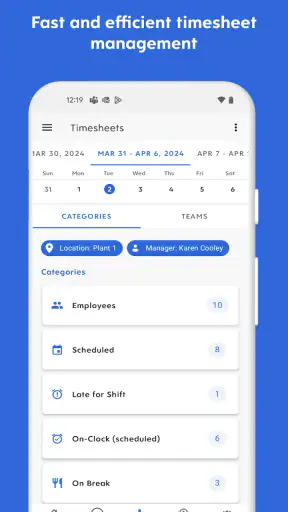
My baseline workflow with Dayforce would begin before a shift, not during a crisis. I would open it to check the information my employer makes available, review the day’s work details, and confirm that anything requiring action is already in order. If I needed to record time, review a schedule, or submit a workplace request, the phone is more convenient than waiting until I reach a computer.
This matters most for employees who move between locations or spend much of the day away from a desk. A retail worker, field employee, healthcare worker, or hourly team member can benefit from having work-related actions in the same place instead of relying on paper notes, separate messages, and memory. The app’s store summary, “Manage work life on the go,” is simple, but it captures the central advantage accurately.
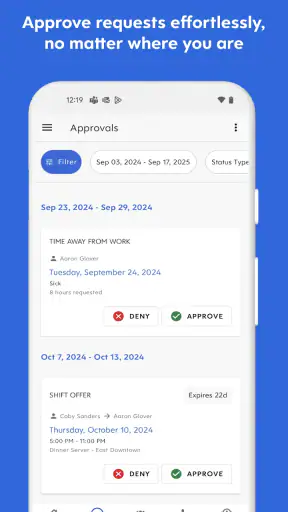
A realistic example is a shift change. I might notice that the schedule shown in the app does not match what I expected, then use the available workplace workflow to review the details or make the appropriate request. I would still treat the app as a channel into my employer’s system, not as an instant approval machine. Whether a request can be submitted, changed, or approved depends on the organization’s setup and the permissions attached to my account.
That point is easy to overlook. Installing Dayforce does not automatically give every employee the same experience. Two people can use the same app and see different options because their employers have enabled different functions, or because their roles have different access. I found it more helpful to judge the app by how quickly it lets me reach the tools my workplace actually uses, rather than expecting every possible business feature to appear.
The app also works best when I use it for small, repeatable checks. I would not open it casually throughout the day just to browse. Instead, I would create a habit around the moments when information matters: before work, after a schedule change, when submitting a request, and when checking whether an action has moved forward. That keeps the app practical and avoids turning it into another source of notification fatigue.
The first setup decisions are more important than they look
On a new installation, I would take a few minutes to sign in carefully and confirm that the correct employer account is connected. This is not glamorous advice, but workplace apps are less forgiving of account confusion than ordinary social or shopping apps. If a company uses a particular sign-in route, I would follow its instructions rather than repeatedly trying unrelated credentials or assuming that a personal account will work.
I would also check the device’s notification settings after signing in. Notifications can be useful for time-sensitive workplace changes, but I prefer to decide deliberately whether they should appear on the lock screen, make a sound, or remain quiet. A schedule-related alert may be helpful, while a stream of routine reminders can become background noise. The best setup is the one that helps me notice an action without exposing more workplace information than I want visible on a shared screen.
Another useful habit is to look at the app after an update instead of assuming that every screen behaves exactly as before. The current version is 2026.9.0, and business apps can adjust navigation or presentation as their connected services evolve. I do not mean that every update requires relearning the product. I mean that if a familiar button seems to have moved, I would pause and inspect the interface rather than repeatedly tapping old locations.
Dayforce has been available since September 15, 2011, which helps explain why it feels more like a mature workplace platform than a lightweight personal planner. That maturity is valuable when an employer has built dependable processes around it, but it can also make the experience feel more structured than consumer apps. I see that as a trade-off: the app is designed around organizational workflows, not around giving me unlimited freedom to rearrange everything.
Settings I would check before relying on it
The first setting I would review is notification behavior. I would keep alerts that relate to actions I genuinely need to notice, then reduce visual interruptions that do not help me make a decision. If my phone is shared with family or used in a public workplace, I would be especially careful with preview text. The goal is not simply to receive every alert; it is to receive the right alerts in a way that respects privacy.
I would then check the phone’s permissions and system access for the app. I do not grant access automatically. I look at what the app requests, consider whether that access makes sense for the workplace function I am using, and revisit the decision if my use changes. This is a general mobile habit, but it matters more when an app sits close to employment information.
Another setting worth checking is the device’s battery and background behavior. I would not assume that every feature needs unrestricted background activity. If I mainly open the app manually to review my workday, a more conservative battery setting may suit me. If my employer relies on timely alerts, I would make sure the operating system is not suppressing notifications. The right choice depends on whether Dayforce is a quick reference tool or an important alert channel for me.
I would also confirm that the phone’s date, time, and time zone are correct. This sounds obvious, but time-related workplace actions are exactly where a device setting can create confusion. If I travel or regularly cross time zones, I would be more cautious and review displayed work information before acting. I would not use a phone’s convenience as a reason to skip checking the actual date or shift details.
Finally, I would learn where the app takes me after an action. For example, after submitting a request, I would look for a status or confirmation area rather than assuming that a tap completed everything. This is one of the most useful habits I developed: I treat a submitted form and a confirmed result as two separate moments. That reduces the chance of believing something was handled when it only remained in draft or still needed an approval.
Faster patterns for repeat users
Experienced use of Dayforce is less about clever tricks and more about reducing unnecessary decisions. I would keep a consistent order: open the app, check the most time-sensitive work information, complete the action I came for, and verify the result before closing it. Repeating that sequence means I do not wander through unrelated areas or forget why I opened the app.
I would also use the phone’s normal habits to support the app. If I know I need to check a schedule before leaving home, I can place that check beside an existing routine such as preparing for work. If I need to submit a request by a certain point, I would create a reminder in my usual calendar or task tool, because Dayforce is not a replacement for every personal reminder system. The useful combination is Dayforce for the official workplace action and my preferred planner for remembering when to do it.
A second pattern is to capture questions immediately but submit only after checking the details. Suppose I notice a discrepancy in a time record. I would note the date and what appears unusual, then review the relevant screen calmly before sending anything. This is better than filing several incomplete requests while rushing between tasks. The app can make access faster, but it cannot make an unclear explanation clearer.
I would use the same discipline for schedule changes. Before accepting or requesting anything, I would compare the displayed information with my own calendar and any communication from my workplace. That extra check is valuable because mobile screens encourage quick taps. A fast workflow should mean fewer unnecessary steps, not less attention to what I am confirming.
For people who use more than one device, consistency is another practical concern. I would avoid making a change on one device and immediately assuming the other reflects it without checking. If the app is connected to an employer’s service, updates may depend on synchronization and organizational processing. My rule would be simple: after an important action, look for visible confirmation and allow enough time for the workplace system to reflect it before repeating the action.
These habits reveal one of Dayforce’s strongest qualities. It can shorten the distance between noticing a work issue and taking the official next step. Its weakness is the same: because the process feels close at hand, I may be tempted to act too quickly. The best users treat convenience as a reason to verify, not as permission to skip verification.
Where it is strong, and where the limits appear
Dayforce is strongest when my employer has made it the central place for everyday employee tasks. In that situation, I do not need to remember several disconnected procedures. I can use one business app as the starting point for work-life information available to my role. That is more useful than a generic notes app because the information is tied to the organization’s official workflow.
It is also a good fit for people who dislike waiting until they are back at a desktop. A phone is always nearby, and a short mobile interaction can be enough for a routine check or request. The app’s free price removes a personal purchase decision, although the practical value still depends on whether the employer uses Dayforce and which functions are enabled for the employee.
The main limitation is that Dayforce is not fully under the user’s control. I cannot treat it like a personal organizer where I decide the structure, fields, or process. If a company’s configuration is confusing, the app may feel confusing even when the mobile interface is working as intended. In those cases, the right solution may be asking a manager or workplace administrator for clarification rather than reinstalling the app repeatedly.
I would also avoid using it as my only source of personal planning. A calendar is better for arranging appointments, a notes app is better for private reference, and a dedicated task manager is usually better for long-term projects. Dayforce’s role is narrower and more official. That narrower role is a benefit when I need authoritative workplace information, but a limitation when I want flexible planning outside work.
Another trade-off is the difference between employee and manager needs. An employee looking for quick access to work-life tasks may find the app appropriately focused. Someone responsible for complex administration, reporting, or broad workforce management may prefer a larger desktop environment. I would not judge the mobile app harshly for that distinction; a phone interface cannot reasonably replace every administrative workflow.
People with older devices should pay attention to compatibility before building their routine around it. The listed minimum operating system is version 10, so a phone below that requirement is not the right platform for this installation. For a supported device, I would still keep the operating system and app reasonably current, especially when the app is used for important employment information.
Who should use it, and who should skip it
I would recommend Dayforce to employees whose organizations already rely on it and who regularly need work information away from a computer. It is particularly suitable for people with changing schedules, mobile jobs, or short administrative tasks that are inconvenient to postpone. The app earns its place when it removes a real delay from the workday.
I would also recommend it to users willing to build a small routine around confirmation. The strongest experience comes from checking the right information, taking the official action, and verifying what happened. Someone who wants a single tap to solve every workplace issue may find the process slower than expected, especially when approvals or employer rules are involved.
I would skip it as a general business organizer if my employer does not use Dayforce. Downloading a workplace app without an organizational connection is unlikely to provide the value I want. I would also choose another tool if my main goal is project planning, personal finance, team chat, or flexible note-taking. Those needs call for products designed around personal control rather than employer-managed workflows.
Compared with paper schedules and informal messages, Dayforce offers a more official place to check work information and begin supported actions. Compared with a generic calendar, it is more closely tied to the workplace but less flexible for personal planning. Compared with a desktop employee portal, it is easier to reach during the day but naturally less comfortable for long, detailed sessions. I see it as the middle option: more connected than a personal organizer and more convenient than a full browser-based work session.
My verdict after making it part of a routine
Dayforce is a practical business app rather than an exciting one, and that is a compliment. Its value comes from making ordinary work administration reachable when I am away from a desk. The experience is most convincing when my employer has configured it well and I use it for repeatable checks instead of expecting it to become my entire productivity system.
The app has a 4.6 average across around 172 thousand ratings, and it is free for users to obtain. Those figures suggest broad acceptance, but my recommendation is more specific: install it when your workplace uses Dayforce, then spend time learning the exact screens and actions available to your role. Do not judge it only by the first sign-in or by comparing it with a consumer planner.
My preferred approach is to adjust notifications, protect visible workplace information, verify important submissions, and pair the app with a separate personal calendar when reminders matter. Those habits make the mobile experience faster without making it careless. They also make the limitations easier to live with, because I know which jobs belong in Dayforce and which belong elsewhere.
For supported employees, I would keep it installed and use it as the official mobile doorway to work life. For everyone else, I would choose a tool designed for the task they actually need. Dayforce is at its best when convenience and employer-managed information meet in the same routine; it is not meant to be a universal replacement for every business or productivity app.


